
Microphone, tab, or both
Pick Microphone for your voice, Tab audio for a lecture or web player, or Both to mix them into one take. You keep hearing the tab while it records.
Record your voice, the sound of a browser tab, or both at once — right from the Chrome toolbar. Pause, trim, and save as MP3, WAV, OGG, or WebM. Your audio stays on your device.
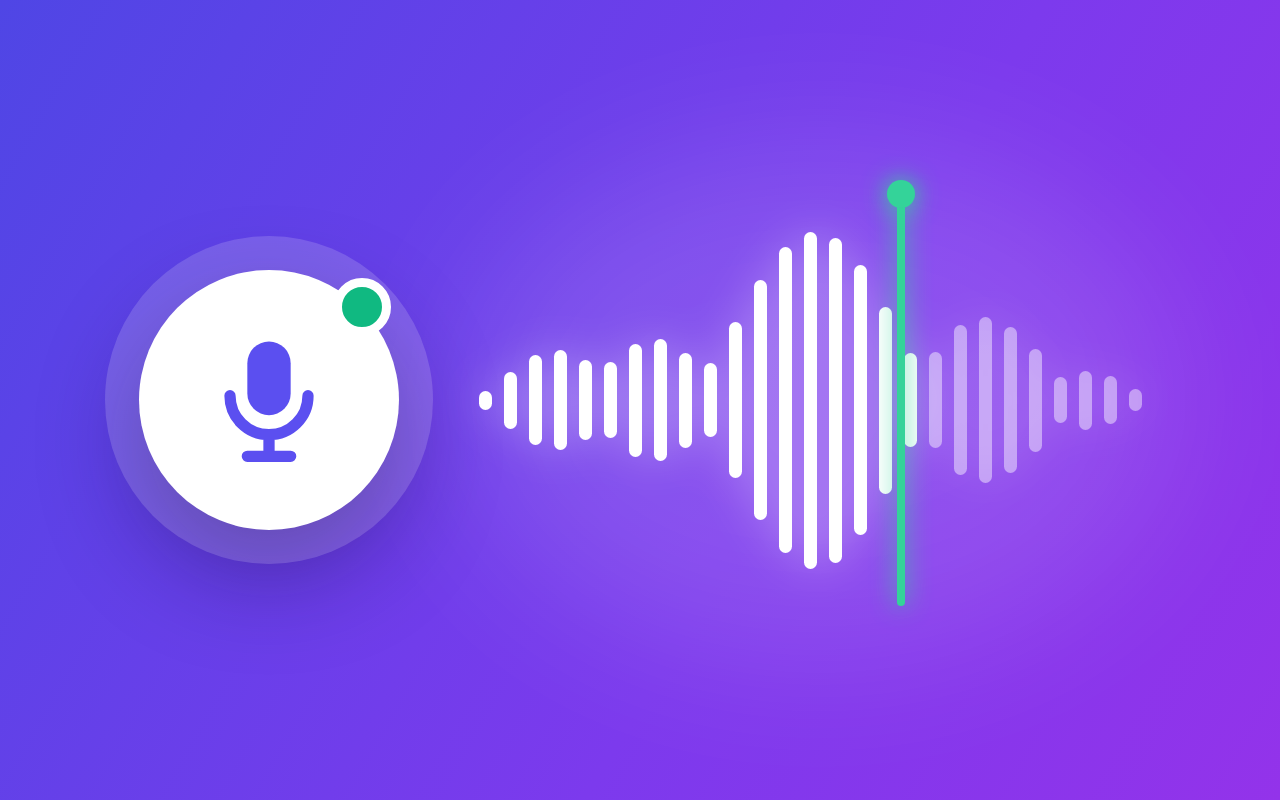
One button, the right source
Pick Microphone for your voice, Tab audio for a lecture or web player, or Both to mix them into one take. You keep hearing the tab while it records.
Pause and resume as often as you need — the session stays one recording. Alt+Shift+R starts or stops, Alt+Shift+P pauses, even with the popup closed.
Drag two handles on the waveform to keep only the part you need. No separate editor, no re-recording a long take because of a slow start.
Choose the format that fits the next step: MP3 for sharing, WAV for editing, OGG or WebM for compact files. Quality goes from 64 to 192 kbps.
Noise suppression and echo cancellation are on by default. Skip silence holds the take while the room is quiet, and a mic volume slider fixes weak input.
Recordings live in your browser storage, not on a server. No account. Rename, play, share, or delete each take, and unfinished takes are recovered after a crash.
Kept on your device
A focused recorder that lives in the Chrome toolbar. It captures, trims, and exports audio inside your browser, so there is nothing to upload and no account to create.
Chrome Web Store
“I record the lecture tab and my own notes at the same time, then trim the intro before saving.”
“Quick voice drafts without opening a full editor. WAV when I edit, MP3 when I send.”
“Spoken feedback for each student in a couple of minutes, and the files never leave my laptop.”
“Pause during the interview breaks keeps everything in one file. Very handy.”
“I hum a riff, hit the shortcut, and it is saved before I forget it.”
“Skip silence makes long voice memos much shorter to listen back to.”
Three quick steps
Add the extension from the Chrome Web Store, then pin its icon so the recorder is one click away.
Open the popup and choose Microphone, Tab audio, or Both. Allow the microphone when Chrome asks.
Press the round button. Pause or stop when you need, trim the take, and download it in the format you want.
Answers before you install
It records sound in Chrome from your microphone, from the current tab, or from both at the same time, then lets you play, trim, rename, and export each take as MP3, WAV, OGG, or WebM.
Yes. Choose Both before you press Record. The microphone and the tab sound are mixed into a single recording.
In your browser's local storage on this computer. Nothing is uploaded. Files leave your device only when you download or share them.
There is no fixed cap. Length is limited by available disk space. You can set an optional auto-stop from 1 minute to 3 hours.
Chrome does not allow capture on its own internal pages, such as settings or the Web Store. Open a regular website and try again.
No. Recording continues after the popup closes. Use the toolbar icon or the keyboard shortcuts to pause or stop.